Get to know more about this course
| Site: | Nephila Web Technology Incorporated |
| Course: | Safe Exam Browser |
| Book: | Get to know more about this course |
| Printed by: | Guest user |
| Date: | Tuesday, 3 February 2026, 5:08 PM |
1. Course Overview
Aim
In this course, you will learn about Safe Exam Browser, it's features and how to use it in accordance to your role.
Format
This is a self-paced course without active moderation. You are encouraged to discuss ideas in the discussion forums and respond to other learners' queries.
Estimated time
The estimated time to complete this course is 3 hours. You can work through the course content at your own pace but to complete the activity, you must ensure all the required items are completed, by doing what the requirements say.
Note: A badge will be issued at the end of the course when you have completed all the required activities.
2. Learning Outcomes
By the end of this course, participants will be able to:
- Define what is Safe Exam Browser (SEB)
- Identify the SEB key features and how each works and help with online assessing.
- Know how SEB works with different LMS roles.
3. Completion and Assessment
To complete the course you need to complete the following activities:
- 'Get to know more about this course' book (what you are reading now).
- 'General discussion forum' where anyone can post or reply to the forum.
Safe Exam Browser Overview
- 'Safe Exam Browser key features'. Be introduced to Safe Exam Browser and the main features it offers.
- 'How SEB works with Moodle'. Find out how SEB mainly works with Moodle LMS.
SEB with Moodle User Roles
- Moodle Roles
- As a Teacher
- As a Student
- As a Site Administrator
Course check
- 'Check your understanding'. Check your understanding quiz, achieving 80% or more.
- 'Provide a feedback'. Answer these short questions.
Completing the activities
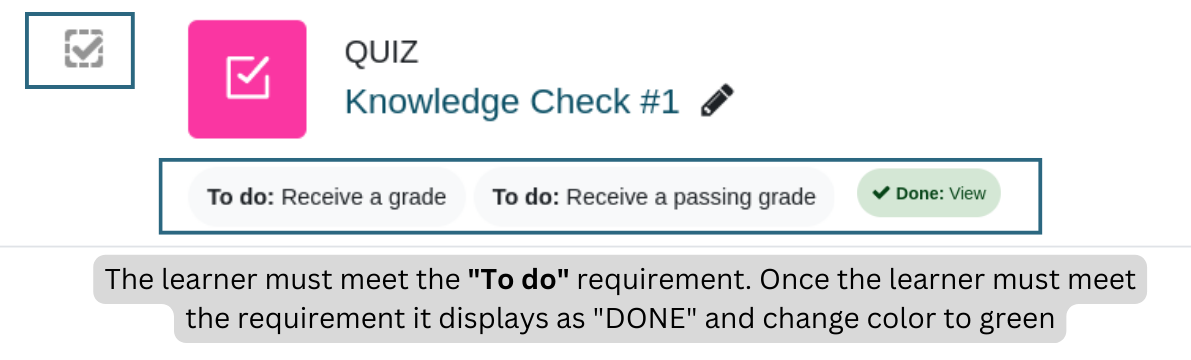
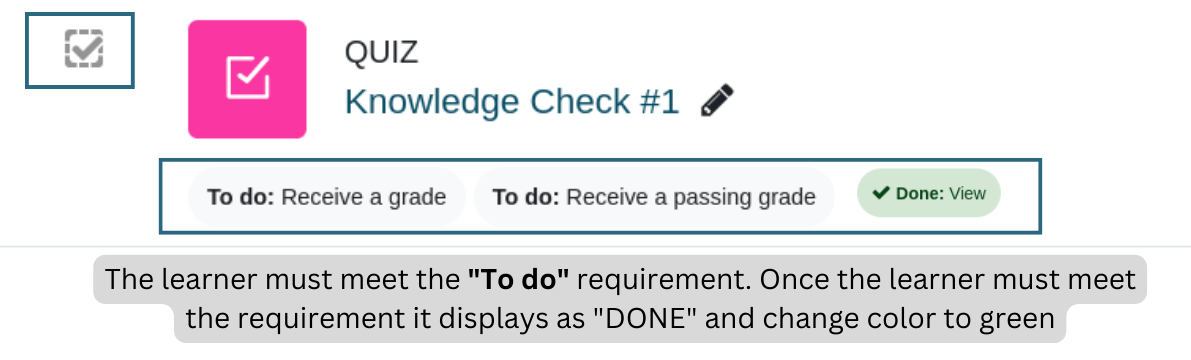
In this course, certain activities are marked as completed automatically based on specific criteria. You can recognize these activities by the "To do" displayed on the course page. For instance, completing a quiz with a passing grade or reaching the end of a lesson would be considered as completed activities.
Course badge
Upon successful completion of this course, you will be automatically awarded the relevant badge to showcase the skills and knowledge you have obtained.
4. Access via Moodle App
To access your LMS site in the Moodle App:
- Go to playstore and download the Moodle App
- Once installed on your phone. Open the Moodle app.
- Enter https://lms.nephilaweb.com.ph <or your moodle site>
- Tap Connect.
- Enter your username and password.
- Tap Log in.